Step-by-Step Guide: How to Digitally Sign a PDF
Overview of Digital Signatures
In today’s digital world, the need for secure and authentic document signing has never been more crucial. Digital signatures offer a modern solution to this age-old problem, providing a way to verify the authenticity of a document and the identity of its signatory.
A digital signature is a cryptographic technique that ensures the integrity of a document by creating a unique identifier for the signer. This identifier, generated through a combination of the signer’s private key and the document’s contents, can be used to verify the document’s integrity and authenticity.
Unlike traditional paper signatures, digital signatures are nearly impossible to forge or tamper with, making them a highly secure method of document signing. Additionally, digital signatures can be easily verified by anyone with access to the document and the appropriate verification software.
By using digital signatures, businesses and individuals can streamline their document signing processes, reduce the risk of fraud, and ensure the security of their sensitive information. With the increasing prevalence of remote work and online transactions, digital signatures have become an essential tool for ensuring the authenticity and security of digital documents.
Advantages of Digitally Signing a PDF
Ensuring the security and integrity of your documents is crucial in today’s digital age, which is where digitally signing a PDF comes in handy. There are several advantages to incorporating digital signatures into your workflow.
First and foremost, digital signatures provide a level of authenticity that traditional paper signatures simply cannot match. By encrypting the signature with a unique digital key, it becomes nearly impossible for unauthorized individuals to tamper with the document without detection. This added layer of security gives both the sender and receiver peace of mind knowing that the document has not been altered in any way.
Furthermore, digitally signing a PDF streamlines the approval process and eliminates the need for physical signatures. This not only saves time but also reduces the reliance on paper, making it a more environmentally friendly option. With just a few clicks, you can securely sign and distribute important documents without the hassle of printing, signing, scanning, and emailing.
In addition, digital signatures are legally binding in many jurisdictions, making them a reliable and accepted method for executing agreements and contracts. Whether you are finalizing a business deal or signing off on a project, digitally signing a PDF gives your documents the credibility they need to hold up in court if necessary.
Overall, the advantages of digitally signing a PDF are clear: enhanced security, efficiency, and legal validity. By incorporating digital signatures into your document management processes, you can protect your information, streamline workflows, and ensure compliance with industry regulations.
Choosing the Right Digital Signature Software
When it comes to digitally signing PDF documents, selecting the right digital signature software is crucial. With a plethora of options available in the market, it can be overwhelming to choose the best software for your specific needs.
To make the selection process easier, consider the following factors when choosing digital signature software:
- Security Features: Look for software that offers advanced security features such as encryption to ensure the confidentiality and integrity of your digital signatures.
- Ease of Use: The software should be user-friendly and intuitive, allowing you to easily create and add digital signatures to your PDF documents without any hassle.
- Compatibility: Ensure that the software is compatible with the devices and operating systems you use, whether it’s Windows, Mac, iOS, or Android.
- Integration: If you work with other software or platforms, choose digital signature software that seamlessly integrates with your existing tools for a smoother workflow.
- Cost: Consider your budget and choose software that provides the right balance of features and affordability.
By carefully evaluating these factors, you can select the best digital signature software that meets your requirements and ensures a secure and seamless signing experience. Remember, the right software can greatly enhance your digital signing process and protect the integrity of your documents.
Steps to Create a Digital Signature
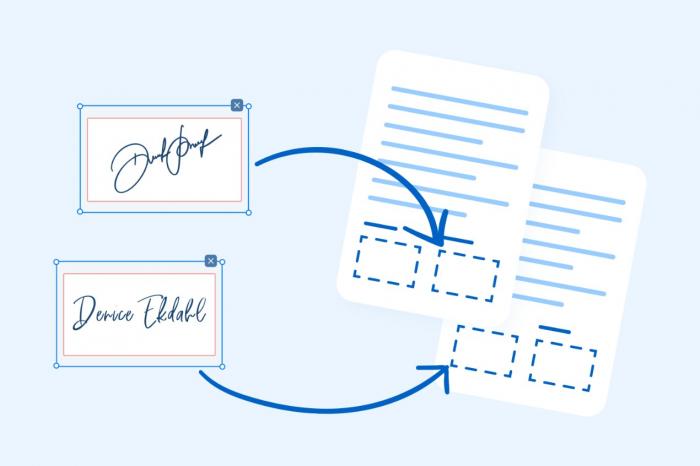
Creating a digital signature is a crucial step in the process of digitally signing a PDF document. Follow these simple steps to create your own digital signature:
- Choose a Digital Signature Tool: Select a reliable digital signature software that offers secure and easy-to-use features for creating your digital signature.
- Create Your Signature: Use the tool to draw your signature electronically on the screen or upload an image of your handwritten signature. Make sure to adjust the size and position to fit within the designated area.
- Select Signature Properties: Customize your digital signature by choosing the color, thickness, and style that best represents your personal signature.
- Save Your Signature: Once you are satisfied with your digital signature, save it on the software for future use. You can also create multiple signatures for different purposes.
- Secure Your Signature: To prevent unauthorized use of your digital signature, protect it with a strong password or PIN code. This will ensure that only you can access and use your signature.
By following these steps, you can easily create a digital signature that is unique to you and can be used to sign PDF documents securely and efficiently. Upgrade your document signing process with a digital signature today!
Adding Your Digital Signature to a PDF
Adding your digital signature to a PDF is a crucial step in ensuring the authenticity and integrity of the document. By digitally signing a PDF, you can provide a secure and legally binding way to verify the content and authorship of the file. Here are simple steps to guide you through the process:
- Open the PDF Document: Start by opening the PDF document that you want to digitally sign using your chosen digital signature software.
- Locate the Signature Tool: Look for the signature tool within the software interface. This tool is often represented by a pen icon or a signature field.
- Create Your Digital Signature: Depending on the software, you may have the option to draw your signature using a mouse or stylus, or upload an image of your handwritten signature.
- Place Your Signature: Once you have created your digital signature, place it in the designated signature field within the PDF document.
- Save the Document: After adding your digital signature, save the document to ensure that the signature is securely embedded in the file.
By following these simple steps, you can confidently add your digital signature to any PDF document. Remember to choose a reliable digital signature software that offers secure encryption and authentication features for enhanced document security. With your digital signature in place, you can trust that your PDF files are protected from unauthorized alterations and maintain their integrity throughout their lifecycle.
Verifying a Digitally Signed PDF
Verifying the authenticity and integrity of a digitally signed PDF is crucial to ensure that the document has not been tampered with or altered. When you receive a digitally signed PDF, you can easily verify its validity by following a few simple steps.
First, open the digitally signed PDF using a PDF reader that supports digital signatures. Look for a notification or icon indicating that the document has been digitally signed. Next, locate the signature field within the PDF, which typically displays information about the signer, such as their name, email address, and the date and time of signing.
To verify the digital signature, right-click on the signature field and select “Verify Signature” from the dropdown menu. The PDF reader will then check the signature against the public key of the signer to ensure that it is valid and has not been altered since it was signed. If the signature is valid, you will see a confirmation message indicating that the document has passed verification.
In some cases, you may encounter issues when trying to verify a digitally signed PDF, such as an expired certificate or a mismatched signature. If this happens, you may need to contact the signer or review the digital signature settings to troubleshoot the problem.
By following these steps to verify a digitally signed PDF, you can confidently rely on the authenticity and integrity of the document, knowing that it has been securely signed and preserved.
Troubleshooting Digital Signature Issues
Encountering issues with digital signatures can be frustrating, but fear not – we’ve got you covered with some troubleshooting tips to help you navigate through any potential hiccups. One common problem users face is a signature not appearing correctly or at all on the PDF document. In this case, double-check that the digital signature software you are using is compatible with the PDF viewer.
If you are having trouble verifying a digitally signed PDF, ensure that you have the necessary certificates installed on your device. Without the proper certificates, the verification process will not be successful. Additionally, make sure that the signer’s certificate has not expired, as this can lead to verification failures.
Another troubleshooting tip is to check for any updates or patches for your digital signature software. Sometimes, software bugs can cause issues with digital signatures, and installing the latest updates can help resolve these issues. Additionally, if you are using a cloud-based digital signature solution, ensure that your internet connection is stable to prevent any disruptions during the signing process.
By following these troubleshooting tips, you can address common digital signature issues and ensure a seamless signing experience. If problems persist, don’t hesitate to reach out to the customer support team of your digital signature software provider for further assistance.
Best Practices for Digital Signing
When it comes to digitally signing PDF documents, following best practices is crucial to ensure the security and integrity of your electronic signature. Here are some tips to help you make the most of your digital signing process:
- Keep Your Private Key Secure: Your private key is essential for creating digital signatures, so it’s important to keep it safe and secure. Avoid sharing it with others and consider using a secure password to protect it.
- Use Certified Digital Signature Software: Opt for reputable and certified digital signature software to ensure the authenticity and legality of your signatures. Look for solutions that comply with industry standards and regulations.
- Verify the Identity of the Signer: Before digitally signing a document, ensure that you are verifying the identity of the signer. This can be done through various authentication methods, such as email verification or two-factor authentication.
- Maintain an Audit Trail: Keep a record of all digitally signed documents, including information about the signer, the date and time of the signature, and any changes made to the document. This audit trail can serve as evidence in case of disputes or legal challenges.
By following these best practices, you can enhance the security and trustworthiness of your digital signatures, ensuring that your electronically signed documents are legally binding and secure.
Digital Signature vs Electronic Signature: What’s the Difference?
When it comes to signing documents digitally, many people use the terms “digital signature” and “electronic signature” interchangeably. However, there are key differences between the two that are important to understand.
A digital signature is a type of electronic signature that is based on cryptographic technology. It involves the use of a certificate-based digital ID to authenticate the signer’s identity and ensure the integrity of the signed document. Digital signatures are considered to be more secure and tamper-evident compared to electronic signatures.
On the other hand, an electronic signature is a broader term that encompasses any electronic indication of intent to sign a document. This can include a scanned image of a handwritten signature, a typed name, or even a simple checkbox affirming agreement. Electronic signatures do not necessarily have the same level of security and authentication as digital signatures.
In essence, the main difference between the two lies in the level of security and authentication they provide. While electronic signatures are more convenient and widely accepted for basic transactions, digital signatures offer a higher level of assurance when it comes to sensitive or legally binding documents.
When choosing between a digital signature and an electronic signature, it’s crucial to consider the security requirements of the document and the level of trust needed in the signing process. By understanding the differences between the two, you can make an informed decision on which type of signature is best suited for your specific needs.