Mastering How to cancel Apple TV+!Cancellation's Tips and Tricks
While Apple TV+ offers an array of top-notch new shows at a reasonably affordable subscription cost, it remains quite effortless to discontinue the service. In comparison to Netflix and Disney+, Apple's collection of exceptional content is not yet extensive enough to captivate you indefinitely. In the event that you have already indulged in Severance and The Afterparty, you might find yourself prepared to explore different avenues. Here is the guide for you!
If you are pondering over how to terminate your Apple TV+ subscription, fear not, for the process is quite uncomplicated. You can easily navigate through our comprehensive, step-by-step guidelines below while considering alternative streaming options that deliver equally remarkable content.
Apple TV+ Cancellation Overview: What You Need to Know
If you’ve decided to part ways with your Apple TV subscription, there are a few key things you need to know. Whether you’re looking to switch to a different streaming platform or simply taking a break from your current subscription, understanding the cancellation process will ensure a seamless transition.
First and foremost, it’s important to note that canceling your Apple TV subscription does not mean you lose access to the service immediately. Your subscription will remain active until the end of your billing cycle, so you can continue enjoying your favorite shows and movies until then.
When canceling, you have the option to either disable the auto-renewal feature or completely terminate your subscription. Disabling auto-renewal allows you to retain access until the end of the billing cycle but prevents any further charges. On the other hand, terminating your subscription will immediately halt access and prevent any future charges.
- Launch the Apple TV app on your device.
- Go to the “Accounts” tab or “Settings” section.
- Navigate to “Subscriptions” or “Manage Subscriptions.”
- Select the subscription you wish to cancel.
- Choose the “Cancel Subscription” or “Edit Subscription” option.
- Follow the prompts to confirm your cancellation.
It’s worth noting that canceling your subscription does not entitle you to a refund for any unused portion of your current billing cycle. However, you will still have access to the service until the end of that period.
Before canceling, consider the benefits of keeping your Apple TV subscription. The platform offers exclusive content, including original shows and movies, and access to a vast library of entertainment. If you decide to cancel, you may miss out on these unique offerings.
In conclusion, canceling your Apple TV subscription is a straightforward process that allows you to retain access until the end of your billing cycle. However, it’s important to carefully weigh the advantages and disadvantages before making a final decision. So, if you’re ready to explore other streaming options or looking to save on subscription costs, follow the aforementioned steps to successfully cancel your Apple TV subscription.
Benefits of Cancelling Apple TV Subscription
Are you considering cancelling your Apple TV subscription? While it may seem counterintuitive to terminate a popular streaming service like Apple TV, there are actually several benefits that may make it worth your while. In this section, we will explore the advantages of ending your Apple TV subscription, allowing you to make an informed decision.
More Control Over Your Streaming Budget
One of the primary benefits of cancelling your Apple TV subscription is the ability to regain control over your streaming budget. With numerous streaming platforms available today, costs can quickly add up. By cutting out one subscription, you can allocate those funds towards other streaming services or entertainment options that better suit your preferences.
Access to a Wide Variety of Content
Whilst Apple TV offers a diverse range of shows and movies, cancelling your subscription opens up a whole new world of streaming options. Each streaming platform has its own unique content library, providing you with a greater variety and allowing you to explore different genres and styles. From popular streaming giants like Netflix and Amazon Prime Video to niche platforms focusing on specific interests, the possibilities are endless.
Flexibility to Explore Alternatives
By cancelling Apple TV, you gain the flexibility to try out alternative streaming options. This allows you to find the perfect platform that aligns with your viewing preferences, user interface, and overall streaming experience. With so many options available, you are bound to discover the platform that caters to your specific needs, offering better features or a more intuitive interface.
No Commitment or Cancellation Fees
Apple TV subscription cancellation comes with the added benefit of not being tied down to any contracts or experiencing cancellation fees. Some streaming platforms require long-term commitments or charge hefty fees for early cancellations. With Apple TV, you have the freedom to cancel your subscription at any time, without any penalties or financial burden.
Your Viewing Experience, Your Choice
Ultimately, cancelling your Apple TV subscription allows you to take control of your viewing experience. You can curate your own collection of streaming platforms that align with your interests and budget, providing you with a personalized entertainment ecosystem.
In conclusion, terminating your Apple TV subscription offers numerous benefits such as regaining control over your streaming budget, accessing a wider variety of content, exploring alternative options, avoiding commitment or cancellation fees, and customizing your viewing experience. Consider these advantages and make an informed decision that suits your individual preferences and needs.
Step-by-Step Guide on how to cancel apple tv+
To cancel your Apple TV+ subscription, follow these steps:
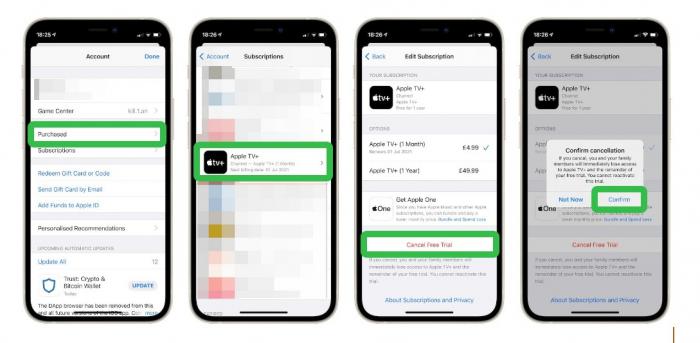
- Visit the website tv.apple.com.
- Click on the account icon located at the top of the page. If you cannot find the account icon, click on “Sign in” and enter your Apple ID credentials.
- Select “Settings” from the options.
- Scroll down to the “Subscriptions” section and click on “Manage”.
- Finally, select “Cancel Subscription” to complete the cancellation process.
If you’re considering canceling your Apple TV subscription, this step-by-step guide will walk you through the process to ensure a seamless cancellation experience. Follow these simple steps to part ways with Apple TV effortlessly.
Step 1: Accessing Apple TV Settings
Begin by accessing the settings menu on your Apple TV device. Use your remote control to navigate to the main menu and scroll right to find the “Settings” option. Select it and proceed to the next step.
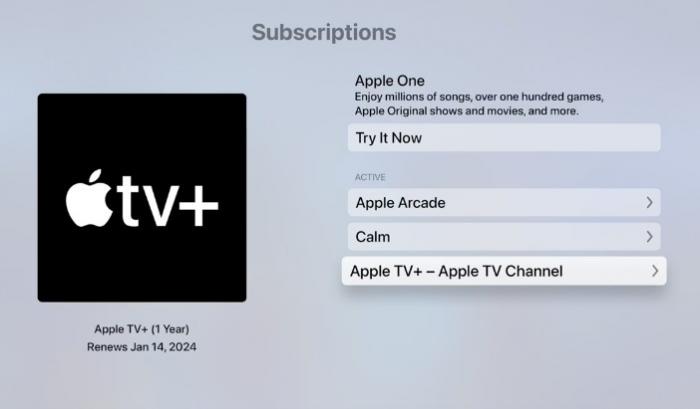
Step 2: Navigating to your Apple ID
Within the settings menu, locate and click on the “Users and Accounts” option. In this section, you’ll find your Apple ID. Tap on it to proceed with the cancellation process.
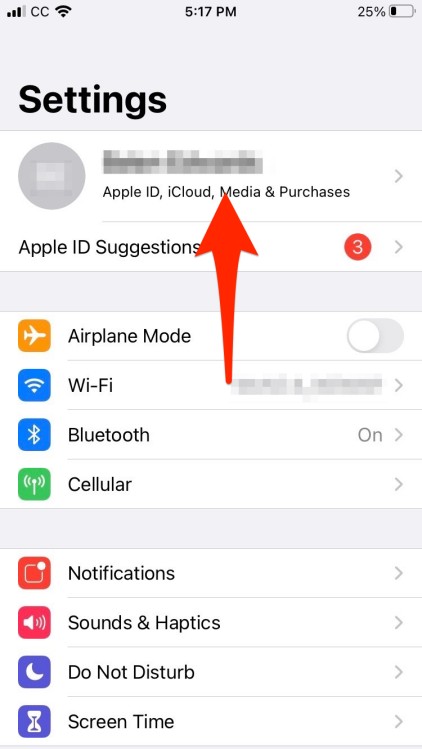
Step 3: Managing Subscriptions
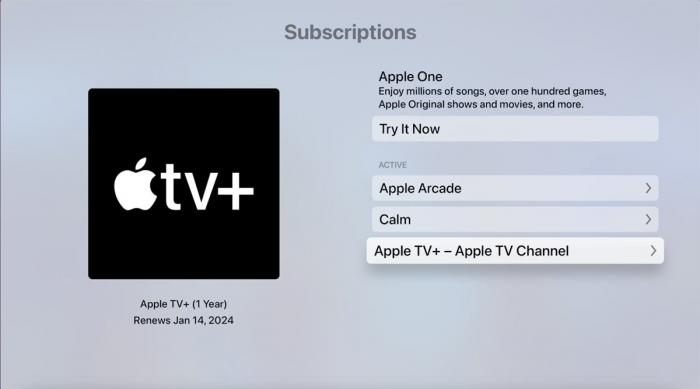
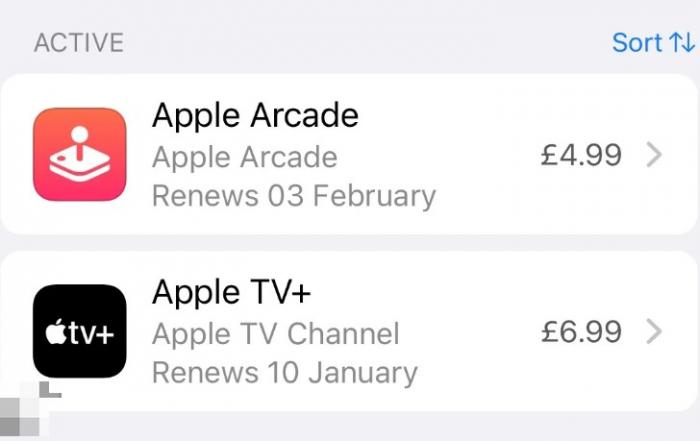
Under your Apple ID settings, you’ll find the “Subscriptions” tab. Select it, and you will be presented with a list of all the active subscriptions associated with your Apple ID. Look for the Apple TV subscription and click on it to manage the subscription details.
Step 4: Cancelling Apple TV Subscription
Once you’ve accessed the Apple TV subscription settings, you’ll see an option to cancel your subscription. Click on this option and follow the prompts to confirm your cancellation. Depending on your billing cycle, you may still have access to Apple TV until the end of the current billing period.
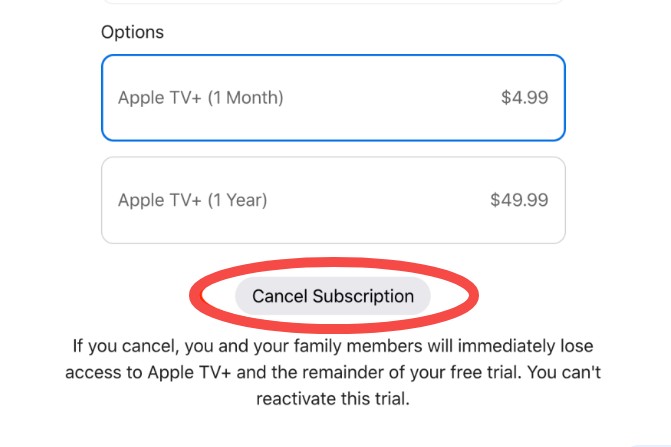
Step 5: Verifying Cancellation
To ensure that your Apple TV subscription has been successfully canceled, return to the main menu and open the Apple TV app. If your cancellation was processed correctly, you should no longer have access to any premium content or features.
However, it’s important to keep in mind that if you have subscribed to Apple TV through another platform, such as a cable provider or third-party streaming service, you will need to follow their specific cancellation procedures.
By following these steps, you can easily cancel your Apple TV subscription and explore other streaming options or save on subscription costs. Remember to stay informed about your billing cycle, as canceling may not take effect immediately, and you may still be charged until the end of the current period.
Make the most of your streaming experience and take control of your subscriptions with these simple steps to cancel your Apple TV subscription hassle-free.
Tips to Avoid Apple TV Cancellation Fees
When it comes to canceling your Apple TV subscription, avoiding unnecessary fees is always a top priority. Whether you’re switching to a different streaming platform or taking a break from streaming altogether, here are some valuable tips to help you steer clear of cancellation fees.
Review Subscription Terms and Conditions
Before you cancel your Apple TV subscription, take a moment to review the terms and conditions associated with it. Understanding any cancellation policies or fees outlined in the fine print will save you from unpleasant surprises. By being aware of the specific requirements for cancelling, you can make a more informed decision and avoid any unnecessary charges.
Set Reminder Notifications
It’s easy to lose track of subscription renewal dates amidst our busy lives. To avoid accidental renewals and potential cancellation fees, set up reminder notifications on your phone or computer. This way, you’ll receive timely notifications in advance, prompting you to review your subscription and take necessary action. By staying organized, you can effectively manage your Apple TV subscription and avoid any unintentional fees.
Opt for Free Trials
Apple TV occasionally offers free trials for new users or existing subscribers. If you’re considering canceling your subscription temporarily, check if you’re eligible for a free trial. This will allow you to enjoy Apple TV’s content without incurring any cancellation fees. However, remember to set a reminder to cancel the trial before the billing period begins to avoid being charged once it ends.
Time Your Cancellation Strategically
To maximize savings and avoid potential fees, time your cancellation strategically. Consider the billing cycle of your Apple TV subscription and cancel a few days before the next period begins. This way, you can fully utilize the service until the last moment without incurring any additional costs. Planning your cancellation in advance ensures a seamless transition and helps you avoid unnecessary fees.
By following these tips, you can navigate the process of canceling your Apple TV subscription without worrying about cancellation fees. Remember to read the fine print, set reminder notifications, take advantage of free trials, and time your cancellation strategically. These steps will empower you to make informed decisions and optimize your savings while parting ways with Apple TV, if only temporarily.
Make your Apple TV cancellation hassle-free and cost-effective by implementing these practical tips. Happy streaming!
Troubleshooting Common Apple TV Cancellation Issues
Are you facing any issues while trying to cancel your Apple TV subscription? Don’t worry, we’ve got you covered! In this section, we will address some of the common problems that users encounter during the Apple TV cancellation process and provide effective solutions to resolve them.
Issue 1: Unable to Locate the Subscription Settings
One of the main challenges users face is finding the subscription settings on their Apple TV device. To resolve this, follow these simple steps:
- Open the Apple TV app on your device.
- Go to the “Settings” menu.
- Scroll down and select “Users & Accounts.”
- Choose your account.
- Under “Subscriptions,” select “Manage Subscriptions.”
- Select the subscription you wish to cancel and follow the prompts.
Issue 2: Subscription Renewed Despite Cancellation
Sometimes, even after canceling your Apple TV subscription, you may find that it continues to renew and charge your account. To rectify this, try the following steps:
- Confirm that you have canceled the subscription following the process mentioned above.
- Restart your Apple TV device.
- Go to “Settings” and sign out of your Apple ID.
- Sign back in and check if the subscription has been canceled.
Issue 3: Error Messages During Cancellation
Encountering error messages can be frustrating, but there are a few things you can try:
- Ensure that you have a stable internet connection.
- Restart your Apple TV device.
- Check for any pending software updates.
- Try canceling the subscription on a different device, such as a computer or mobile device.
- Contact Apple Support for further assistance if the error persists.
Issue 4: Subscription Cancellation Not Reflected in Billing
If you have successfully canceled your Apple TV subscription but still see charges on your billing statement, here’s what you can do:
- Double-check your bank or credit card statement to ensure the charges are related to Apple TV.
- Allow some time for the cancellation to be reflected in your billing.
- If the charges persist, contact Apple Support with your account details and proof of cancellation. They will assist you in resolving the issue.
Preventive downloading of favorite shows before cancel Apple TV+
Benefits of pre-downloading Apple+ TV video
There are several benefits of pre-downloading Apple+ TV videos:
- Convenience: Pre-downloading allows you to watch your favorite Apple+ TV shows and movies anytime, even when there is no internet connection. You can enjoy them during flights, road trips, or in areas with limited or no internet access.
- High-quality streaming: Pre-downloaded videos ensure a seamless streaming experience without buffering or interruptions. This means you can fully immerse yourself in the content without worrying about connectivity issues.
- Time-saving: By pre-downloading Apple+ TV videos, you can eliminate the need to wait for them to buffer or load while streaming. This saves you time and allows for a more enjoyable viewing experience.
- Cost-saving: Pre-downloading videos can help you save on data usage, especially if you have a limited internet plan. Instead of streaming videos using your cellular data, you can download them in advance while connected to Wi-Fi and avoid incurring additional data charges.
- Flexibility: Pre-downloading provides flexibility in terms of when and where you can watch the videos. You can decide to download them overnight or during off-peak hours to optimize download speeds. Additionally, you can watch downloaded videos on multiple devices, offering flexibility in choosing your preferred viewing device.
Overall, pre-downloading Apple+ TV videos offers convenience, high-quality streaming, time and cost savings, as well as added flexibility in how and when you consume your favorite content.
How to download Apple TV+ videos by screen recording?
Downloading Apple TV+ videos is not officially supported by Apple. Apple TV+ content is primarily intended for streaming and is only available through the Apple TV app or website.
However, you can use screen recording software on your device to capture the video while it is playing. Please note that this method may violate the terms and conditions of Apple TV+ and can be considered illegal or against the content provider's policy. Always ensure that you have proper rights to download and store copyrighted content.
Here are the general steps to download Apple TV+ videos using a screen recording software:
1. Install a screen recording software: Search for a trusted screen recording software or app that is compatible with your device's operating system. Popular options include OBS Studio, Bandicam, or QuickTime Player (for Mac).
2. Launch the screen recording software: Open the screen recording software on your device.
3. Configure the recording settings: Adjust the settings according to your preferences, such as the area to record, video quality, and audio settings.
4. Start recording: Start the recording software and play the video you want to download on Apple TV+.
5. Record the video: Ensure the screen recording software captures the video by playing it in full screen or within the specified recording area. You may need to record the entire video in real-time.
6. Stop recording: Once you have recorded the desired video content, stop the screen recording software.
7. Save the video: The recorded video will be saved as a file on your device. You can now access the video for offline viewing.
Remember, it is important to respect copyrights and terms of service while using any streaming platform. Make sure to check Apple TV+'s terms and conditions to ensure that downloading their content is allowed.
How to download Apple TV+ videos by Apple TV Downloader?
StreamFab Apple TV Plus Downloader can download movies and TV shows directly from Apple TV+ in high quality with AAC 2.0 audio tracks into MP4 or MKV orMP3, saving them forever.
To download Apple TV+ videos using the Apple TV Downloader, you can follow these steps:

1. Install the Apple TV Downloader - StreamFab Apple TV Plus Downloader: First, download and install the StreamFab Apple TV Plus Downloader software on your computer. Ensure you download a trusted version from the official website.
2. Launch the Apple TV Downloader: Open the software and ensure it is ready for use.
3. Find the Apple TV+ video: Go to the Apple TV+ platform and locate the video you want to download. Copy the video's URL.
4. Paste the video URL into the downloader: Return to the Apple TV Downloader and paste the video URL into the provided field. Click the "Download" button.
5. Select the download quality: Once the link is analyzed, the downloader will provide you with different video quality options. Select your preferred quality and click "Download" to begin the process.
6. Wait for the download to complete: Once you've chosen the quality, the Apple TV Downloader will start downloading the video. Wait for the download to finish; the time taken depends on the size and speed of the video.
7. Locate the downloaded video: After the download is complete, you can find the downloaded Apple TV+ video in the specified output folder. By default, it is stored in the software's folder on your computer.
That's it! You have successfully downloaded an Apple TV+ video using the Apple TV Downloader. Remember to abide by copyright laws and only download videos for personal use or with necessary permissions.
By following these troubleshooting steps, you can overcome common Apple TV cancellation issues and enjoy a seamless experience. In case you encounter any other problems, don’t hesitate to reach out to Apple support for further assistance. Happy streaming!
Exploring Alternative Streaming Options besides Apple TV+
In today’s fast-paced digital world, streaming services have become an integral part of our entertainment routine. While Apple TV offers a wide range of content, exploring alternative streaming options can bring exciting new possibilities to enhance your entertainment experience. Here are a few alternatives worth considering:
Hulu
Looking for a diverse selection of TV shows, movies, and original content? Hulu has got you covered. With its extensive library of current and classic TV shows, including exclusive partnerships with networks like NBC, ABC, and Fox, Hulu offers a compelling alternative to Apple TV. Plus, Hulu’s affordable pricing plans make it an attractive option.
Netflix
As one of the pioneers in the streaming world, Netflix needs no introduction. With a vast collection of movies, TV series, documentaries, and Netflix Originals, this streaming giant continues to dominate the industry. From gripping dramas to light-hearted comedies, Netflix provides a versatile range of content to suit every mood.
Amazon Prime Video
If you’re an Amazon Prime member, you already have access to Amazon Prime Video. This streaming service offers an impressive library of films and TV shows, including exclusive content like the critically acclaimed “The Marvelous Mrs. Maisel” and “The Boys.” Additionally, Amazon Prime Video provides the added benefit of Prime delivery, making it a fantastic all-in-one package.
Disney+
For fans of Disney, Marvel, Star Wars, and Pixar, Disney+ is a dream come true. This streaming service provides an extensive collection of timeless classics and new releases, along with exciting original series like “The Mandalorian.” With family-friendly content and a thrilling lineup of Marvel superheroes, Disney+ is a must-have for fans of all ages.
HBO Max
Indulge in a world of premium content with HBO Max, offering a compelling mix of critically acclaimed series, blockbuster movies, and exclusive documentaries. From HBO’s iconic shows like “Game of Thrones” to a wide range of Warner Bros.’ classic and new releases, HBO Max delivers an unparalleled streaming experience.
When it comes to exploring alternative streaming options, the possibilities are endless. Whether you’re seeking a specific genre, cost-effective plans, or exclusive content, these streaming services offer a multitude of choices that can cater to your entertainment needs. Expand your horizons, discover new favorites, and elevate your streaming experience beyond Apple TV.
Supplement: Tips and strategies for using Apple TV+
Apple TV Subscription Management Tips
Managing your Apple TV subscription can sometimes be a hassle, but with these tips, you’ll be able to navigate the process with ease. Whether you want to cancel your subscription or simply make changes to your plan, these tips will help you take control of your Apple TV viewing experience.
1. Understand Your Subscription Details
Before making any changes, it’s crucial to understand the details of your subscription. Familiarize yourself with the renewal date, billing cycle, and the amount you are being charged. This knowledge will enable you to make informed decisions regarding your subscription.
2. Utilize the “Manage Subscriptions” Feature
Apple TV offers a convenient “Manage Subscriptions” feature, allowing you to easily manage and modify your subscription settings. Simply access the Subscriptions section in your Apple ID settings to view and adjust your Apple TV subscription. This feature streamlines the process, saving you time and effort.
3. Consider Alternate Subscription Plans
If you’re looking to optimize your Apple TV experience while saving money, consider exploring different subscription plans. Apple offers various subscription options, including bundle packages, which can provide additional savings and access to a wider range of content.
4. Set Reminders for Renewal Dates
To avoid any unexpected charges or disruptions in your viewing experience, set reminders for your renewal dates. This simple step ensures that you have the opportunity to assess your subscription before the next billing cycle begins and make any necessary changes.
5. Take Advantage of Free Trials
Apple TV often provides free trial periods for new subscribers. To make the most of these trials, ensure that you understand the duration and terms associated with the offer. This way, you can thoroughly evaluate the platform before committing to a paid subscription.
6. Opt for Annual Payments
If you’re confident in your commitment to Apple TV, consider opting for annual payments instead of monthly ones. This choice can often provide cost savings and added convenience by eliminating the need for monthly renewals.
7. Keep Track of App Compatibility
App availability and compatibility can vary across different Apple devices. Before subscribing to Apple TV, ensure that the apps and features you desire are compatible with your specific device. This way, you can avoid any frustrations or limitations associated with app incompatibility.
8. Stay Informed About Discounts and Promotions
Apple occasionally offers discounts and promotions for its services, including Apple TV subscriptions. Stay informed by monitoring Apple’s official website or subscribing to newsletters that provide updates on discounts. This way, you can take advantage of special offers and enjoy even more savings.
9. Seek Customer Support When Needed
If you encounter any issues or have specific questions regarding your Apple TV subscription, don’t hesitate to reach out to Apple’s customer support. Their dedicated team will assist you in resolving any concerns and provide guidance on managing your subscription effectively.
By implementing these Apple TV subscription management tips, you’ll have the knowledge and tools to navigate the process confidently. Whether you want to cancel, upgrade, or simply optimize your subscription, these tips will ensure a seamless and enjoyable Apple TV experience while maximizing your savings.
Maximizing Savings with Apple TV Cancellation
When it comes to managing your entertainment subscriptions, finding ways to maximize savings is always a smart move. Apple TV cancellation can be a part of your strategy to optimize your expenses while still enjoying a world of entertainment. Here are a few tips on how you can save more with Apple TV cancellation:
1. Evaluate Your Viewing Habits
Take a moment to assess your favorite shows and movies available on Apple TV. Consider how often you watch them and whether they are exclusive to Apple TV. This evaluation will help you decide if canceling your subscription is a viable option without sacrificing your favorite content.
2. Explore Free Alternatives
Apple TV offers a range of free and ad-supported content that might be enough to satisfy your entertainment needs. By leveraging the free options available, you can reduce your reliance on a paid subscription and save money in the long run.
3. Utilize Free Trials
If you enjoy exploring new shows and movies, take advantage of Apple TV’s free trial periods. By strategically using these trials, you can watch your desired content without committing to a full subscription. Just remember to cancel before the trial ends to avoid any charges.
4. Share Subscriptions
Consider sharing your Apple TV account with family or friends who have similar interests. Apple TV allows multiple users on one account, making it an excellent opportunity to split the cost. By utilizing this feature, you can save money and still enjoy a wide range of content.
5. Keep an Eye on Promotions and Discounts
Stay up-to-date with Apple TV promotions and discounts. Apple frequently offers deals and special offers, which can lead to significant savings. By keeping an eye out for these opportunities, you can make the most of your Apple TV experience while also keeping costs down.
6. Subscribe Only When Necessary
Be mindful of your subscription periods. If you find yourself using other streaming services more frequently, consider canceling your Apple TV subscription until new content or exclusive releases spark your interest again. This way, you are only paying for the services you actively use.
7. Compare Streaming Services
Take the time to review and compare streaming services. By exploring other options, you can identify platforms that offer similar content but at a lower cost. This step allows you to make an informed decision and potentially find a better deal elsewhere.
8. Optimize Your Internet Speed
Ensure that your internet connection can handle streaming services efficiently. By optimizing your internet speed, you can avoid buffering issues and interruptions, ultimately saving time and potential frustration.
Apple TV Cancellation: Frequently Asked Questions
Are you considering cancelling your Apple TV subscription but have some questions before taking the plunge? We’ve got you covered! In this FAQ section, we address the most common queries regarding Apple TV cancellation.
Can I cancel my Apple TV subscription anytime?
Absolutely! With Apple TV, you have the freedom to cancel your subscription anytime you want. Whether it’s a change in preferences or budget constraints, cancelling your subscription is a simple and hassle-free process.
Will I lose access to all content after cancelling my Apple TV subscription?
Yes, cancelling your Apple TV subscription means you will no longer have access to the vast library of content available on the platform. However, keep in mind that any content you have purchased or downloaded will still be accessible through your Apple account.
Can I cancel my Apple TV subscription through the Apple TV app?
While you can manage your subscription through the Apple TV app, cancelling your subscription requires you to go through the Apple ID settings. Simply head to your Apple ID settings, select “Subscriptions,” and you’ll be able to cancel your Apple TV subscription.
Will I be charged any cancellation fees?
No, Apple does not charge any cancellation fees for ending your Apple TV subscription. You can cancel without worrying about incurring any additional costs.
What happens if I cancel my Apple TV subscription before the end of the billing cycle?
If you cancel your Apple TV subscription before the end of the billing cycle, you’ll still have access to the service until the end of the current period. After that, your access will be revoked, and you won’t be charged for the following billing cycle.
Can I restart my Apple TV subscription after cancelling it?
Certainly! If you decide to resubscribe to Apple TV after cancelling, you can easily reactivate your subscription. Just head to your Apple ID settings, select “Subscriptions,” and choose the option to restart your subscription.
Are there any alternatives to Apple TV for streaming content?
Yes, there are several alternative streaming options available for you to explore. Popular alternatives include Netflix, Hulu, Amazon Prime Video, and Disney+. Each platform offers a unique selection of content and features, allowing you to find one that best suits your preferences.
Now that you have answers to some frequently asked questions about Apple TV cancellation, you can make an informed decision that aligns with your streaming needs. Don’t hesitate to cancel or explore other streaming options if it better suits your preferences and budget. Happy streaming!
Final Thoughts
Apple TV Plus is a good website for watching movies. And Apple TV cancellation can be a savvy move when it comes to maximizing savings. By evaluating your viewing habits, exploring free alternatives, utilizing trials, sharing subscriptions, and staying informed about promotions, you can effectively manage your expenses. Remember to subscribe only when necessary, compare streaming services, and optimize your internet speed for a seamless streaming experience. With these tips, you can watch your favorite content while still keeping costs at bay.